- भारत सरकार
- GOVERNMENT OF INDIA

Frequently Asked Question
To access the resources available on the NeVA platform, one can visit the public portal of the NeVA.
Public Portal URL is - https://neva.gov.in/Home/NeVA
- Home
- Lok Sabha
- Rajya Sabha
- Assembly
- Council
- MYNeVA
- Help
- Contact Us
All states and UTs with legislatures have their dedicated NeVA public portal.
Under MYNeVA tab/dropdown option various submenus are available-
- About NeVA
- Training Material
- FAQs
- Gallery
- Downloads
- Contact Directory
helpdesk-neva@gov.in
Central Project Management Unit
Ministry of Parliamentary Affairs,
109, Parliament House Annexe,
New Delhi-110001
011-23034109
This login option redirect the User to the cms.neva.gov.in i.e. CMS portal.
Yes, we can change the theme of the Public Portal
We can change the theme by using DARK & LIGHT optional available at the upper right corner of the homepage.
The user can access the Facebook Page of the NeVA by clicking on the Facebook logo available at the upper right corner of the homepage.
Or by clicking
The user can access the YouTube Page of the NeVA by clicking on the YouTube logo available at the upper right corner of the homepage.
Or by clicking - https://www.youtube.com/channel/UCrGC2V5A3YPY_oneE_4-20w/videos
The user can access the twitter Page of the NeVA by clicking on the Twitter logo available at the upper right corner of the homepage.
Or by clicking-
Public Portal of NeVA can be accessed in various languages viz. English, Hindi, Gujarati, Odia, Bangla, Kannad, Malyalam, Marathi, Punjabi, Tamil, Telugu, Urdu etc.
The homepage shows below items-
- Notices Received
- Questions
- Government Bills
- Members
- Paper Laid
- Committee Reports
The notice board is used to display the latest notification relevant to the House.
The User need to click on MY NeVA and from drop down list, contact directory option is selected.
Contact Directory consist of all legislature directory which include-
Prime Minister, Governor, Chief Ministers, Speaker, Chairman, Deputy Speaker, Deputy Chairman, Members, Chief Secretary and other relevant details.
Yes, it can be downloaded.
Yes, the user can search for a particular contact.
The directory can be downloaded in Word and PDF format.
Yes, User can click the particular legislature from assembly drop down menu for which she wants to visit.
Various redirect links are provided under this head such as-
Various redirect links are provided under this head such as-
To accurately update the session calendar on the public site, it is essential to create all necessary session dates under the "House Details" tab in SuperAdmin Login. If all dates within the session period are not created, the session calendar update will fail. For example, if the upcoming session is scheduled from November 4 to November 8, 2024, ensure that session dates for each day—November 4, 5, 6, 7, and 8—are entered. Otherwise, the session calendar will incorrectly display the session period as November 4, 2024 to November 4, 2024 only.
Additionally, verify that the 'Assembly' and 'Session' fields in SiteSettings contain the correct values for the current session and assembly. These values are crucial for the system to recognize the active session, and missing or incorrect entries here can also prevent accurate session calendar updates. Following these steps will ensure the session period is displayed correctly on the public site.
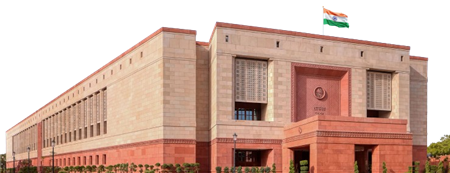 Lok Sabha
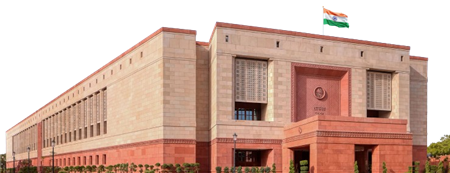 Rajya Sabha
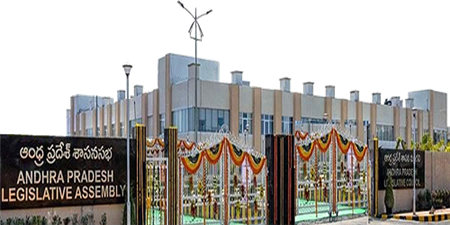 Andhra Pradesh
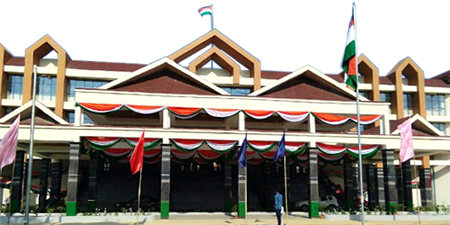 Arunachal Pradesh
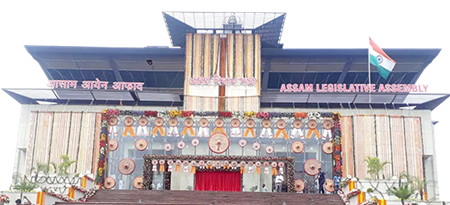 Assam
Assam
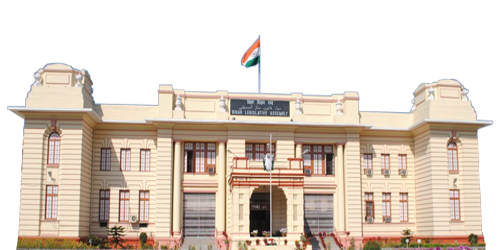 Bihar
Bihar
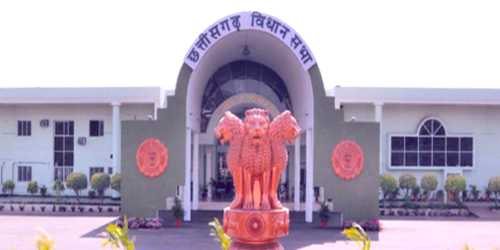 Chhattisgarh
 Delhi
Delhi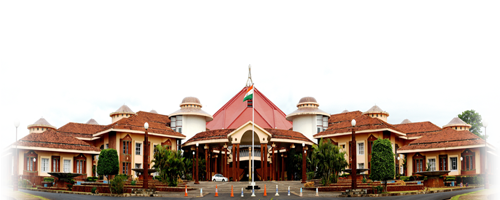 Goa
Goa
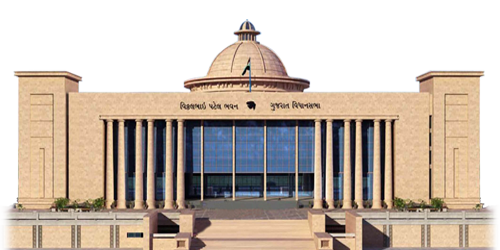 Gujarat
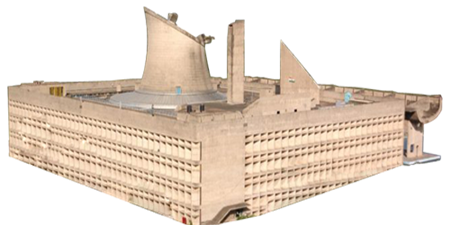 Haryana
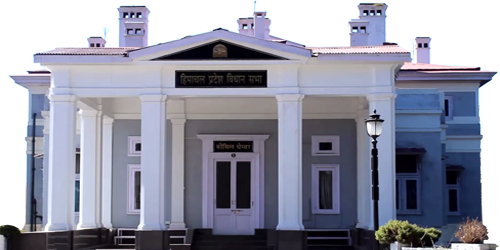 Himachal Pradesh
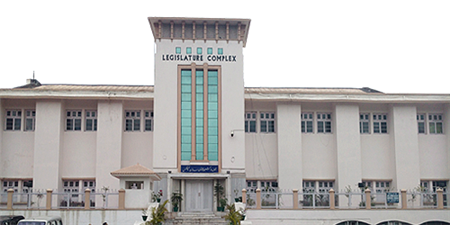 Jammu & Kashmir جموں و کشمیر
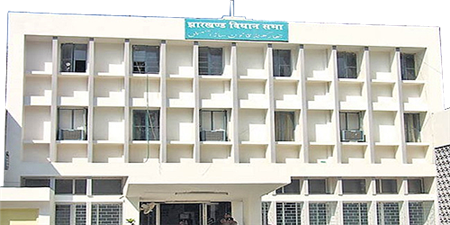 Jharkhand
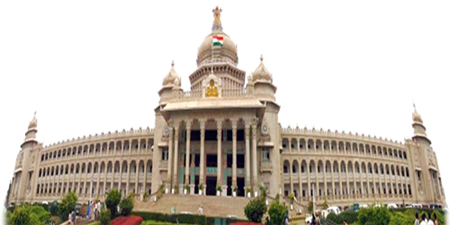 Karnataka
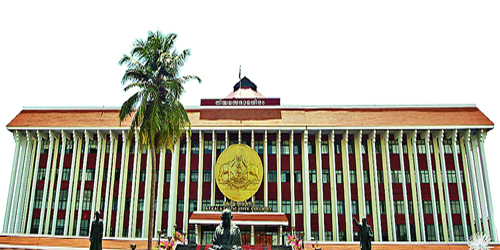 Kerala
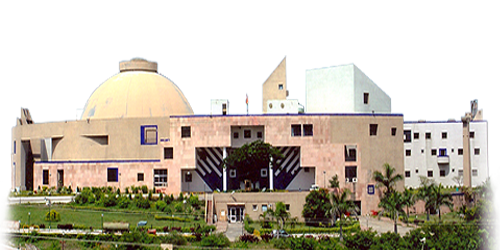 Madhya Pradesh
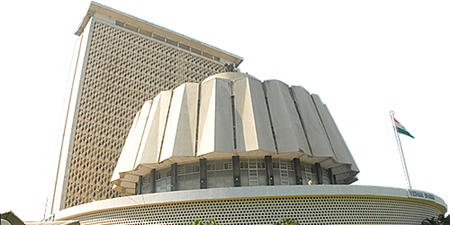 Maharashtra
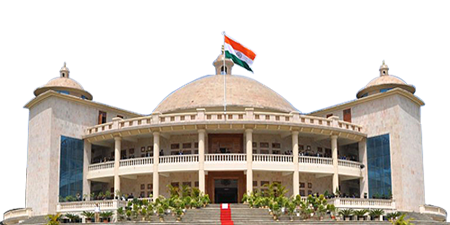 Manipur
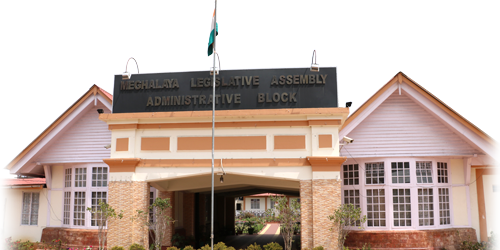 Meghalaya
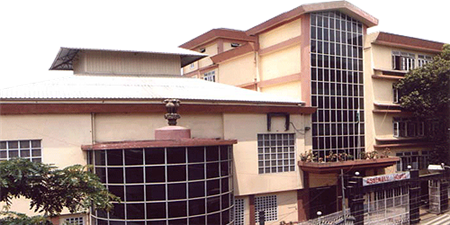 Mizoram
 Nagaland
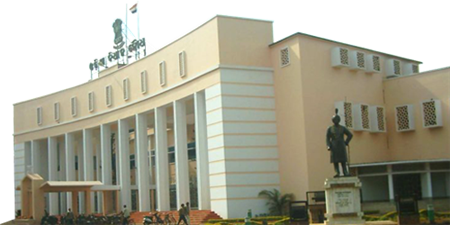 Odisha
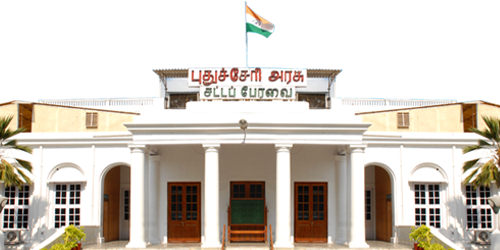 Puducherry
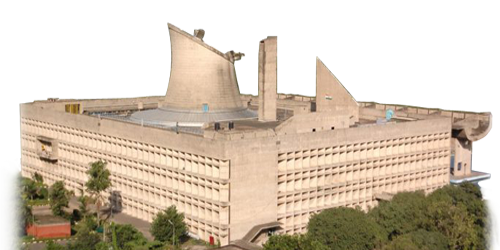 Punjab
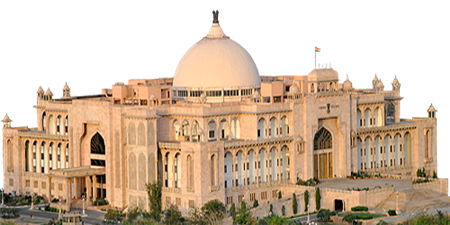 Rajasthan
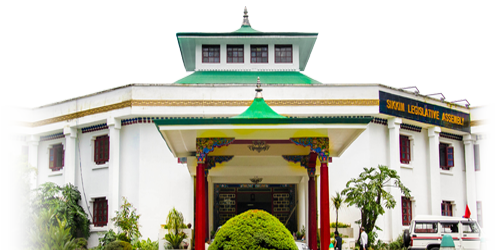 Sikkim
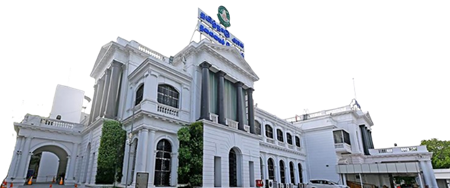 Tamil Nadu
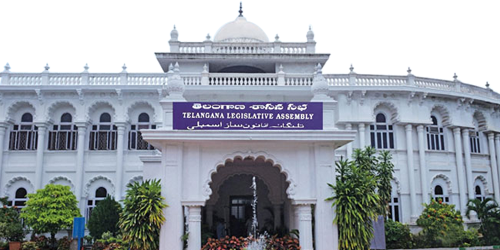 Telangana
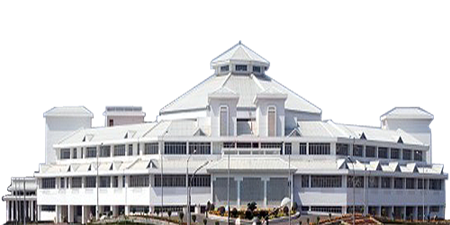 Tripura
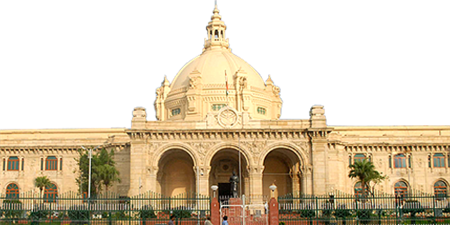 Uttar Pradesh
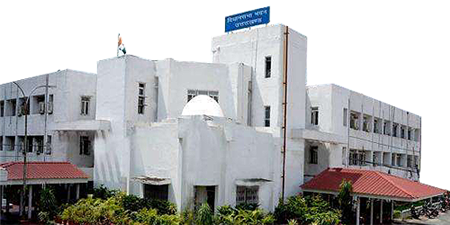 Uttarakhand
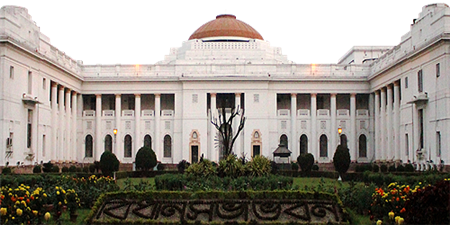 West Bengal
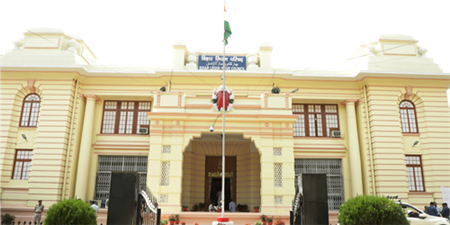 Bihar
Bihar
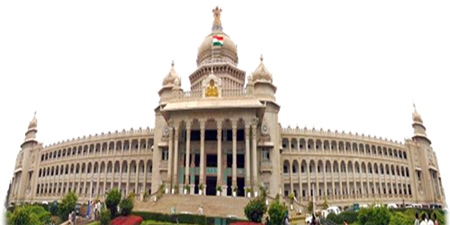 Karnataka
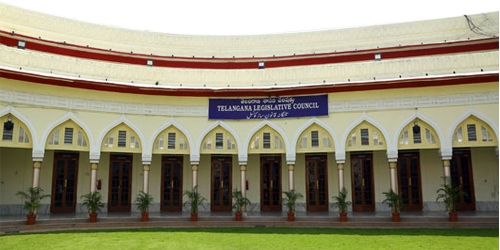 Telangana