- भारत सरकार
- GOVERNMENT OF INDIA

Frequently Asked Question
Digital Archive is a depository of the house documents which were earlier transacted in physical form and the house wants to store them in digital form.
Yes, the depository of old data can be created with the help of NeVA.
Step to Login:
Open the URL: https://cms.neva.gov.in/
- · And login with the Digital Archive Credential
- · Select your House
- · Enter User Name
- · Enter Password
- Enter Captcha and click on Login button.
The digital depository can be formed for following items of the house-
1. Starred Questions
2. UnStarred Questions
3. Short Notice Questions
4. Notice
5. Bills
6. Committee Report
7. List of Business
8. Other Papers
9. Proceedings of House
10. News Clips
Click on the Starred Question tab under My Dashboard Option and fill the following details-
- House *
- Session *
- Session Date : *
- Question No. *
- Member Name *
- Minister Name *
- Department
- Subject
- Subject Regional Language
- Question Details
- Question Details Regional Language
- Question Reply English (Attachment)
- Question Reply Regional (attachment)
- Ref. Page No.
And click on the Save button for further processing of the record.
This shows the compulsion of filling that details.
To save the legacy data of the UNStarred Question the user need to click on the UNstarred option and fill the required field mentioned below-
- House *
- Session *
- Session Date : *
- Question No. *
- Member Name *
- Minister Name *
- Department
- Subject
- Subject Regional Language
- Question Details
- Question Details Regional Language
- Question Reply English (Attachment)
- Question Reply Regional (attachment)
- Ref. Page No.
And click on the Save button for further processing of the record.
The process is same as Starred/Unstarred Questions.
The User needs to click on the Notice Option and fills the below details-
- House *
- Session *
- Session Date : *
- Notice No. *
- Member Name *
- Notice*
- Ministry Name *
- Select Event *
- Notice Date *
- Notice date
- Minister Name *
- Department
- Notice Detail
- Notice Detail Regional Language
- Notice Reply English (attachment)
- Notice Reply Regional (attachment)
And click on the Save button for further processing of the record.
To create digital depositary of the Bills the user need to click on the bill option and fill the following details-
House *
Session *
Bill Type *
Bill File No. *
Bill No
Act No
Bill Title. *
Department
Minister Name
Bill Date *
Bill Passed Date
Bill Assented Date
Bill Lay date
Act date
Committee Name
Referred to Committee Date
As Passed other House Date
As introduced in other House Date
The following attachments are optional to be attached while creating digital archive for the bills-
- Bill Introduced File
- Bill Introduced Local File
- Bill Assented File
- Bill Assented Local File
- Bill File
- Bill Local File
- As introduced in other House File
- As introduced in other House Local File
- Committee Report File
- Committee Report Local File
- As Passed other House File
- As Passed other House Local File
Click on the Committee Reports menu and fill the following details-
- Committee Name : *
- Report Type : *
- Department*
- Financial Year : *
- Title
- Title Regional Language
- Committee Report English (attachment)
- Committee Report Regional (attachment)
And click on the save button.
Click on the List of Business and fill the following details-
- House *
- Session *
- Session Date : *
- Title
- Title Regional
- List Of Business English Pdf (attachment)
- List Of Business Regional Pdf (attachment)
And Click on the save button.
Click on the other papers option and fill the below required fields-
- House *
- Session *
- Session Date : *
- Department:*
- Event *
- Title
- Title Regional
- Other Papers English Pdf (attachment)
Other Papers Regional Pdf (attachment)
Click on the Proceeding of the House and fill the below details available in the form-
- House *
- Session *
- Session Date : *
- Title
- Title Regional
- Proceedings of House English Pdf (attachment)
- Proceedings of House Regional Pdf (attachment)
Click on the New Clips Option and fill the below details as available in the form-
- House *
- Session *
- Session Date : *
- Title
- Title Regional
- News Clips English Pdf (attachment)
- News Clips Regional Pdf (attachment)
To address the issue of digital library data not being visible for previous assemblies on the NeVA Public Portal, you can follow these steps:
- Access the Super Admin Login:
- Log in to the NeVA system as a Super Admin.
- Modify the Site Setting Value for Assembly:
- Locate the site setting named "AssemblyIDForLegacyData".
- Update the value of this setting to the Assembly number whose preceding assemblies' legacy data you want to display.
- For example, if you set the value to 17, the portal will display legacy data for all assemblies prior to the 17th Assembly in the digital library.
- Modify the Site Setting Value for Session:
- Similarly, locate the site setting named "SessionIDForLegacyData".
- Update the value to the Session number whose preceding sessions' legacy data you want to show.
- For example, if you set the value to 5, the portal will display legacy data for all sessions prior to the 5th Session.
- Verify the Changes:
- Once the settings are updated, navigate to the NeVA Public Portal.
- Check the digital library to ensure that the legacy data for the intended assemblies and sessions is now visible.
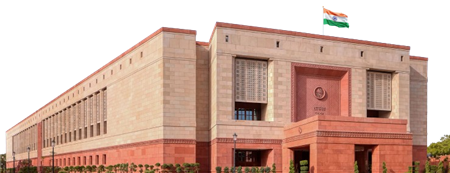 Lok Sabha
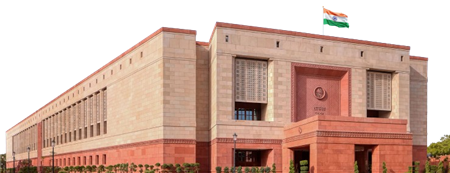 Rajya Sabha
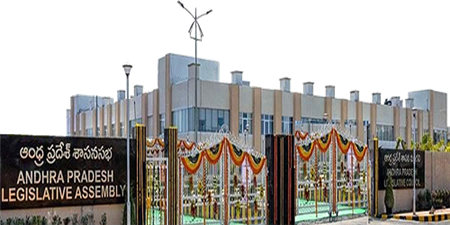 Andhra Pradesh
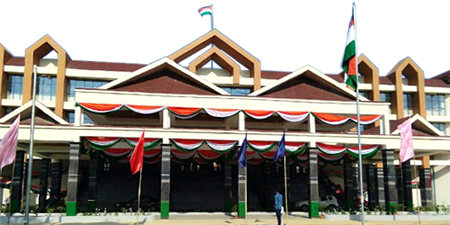 Arunachal Pradesh
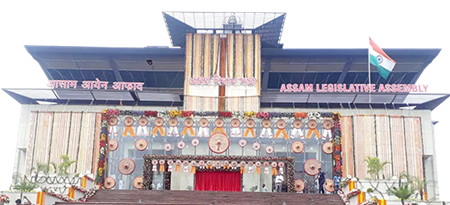 Assam
Assam
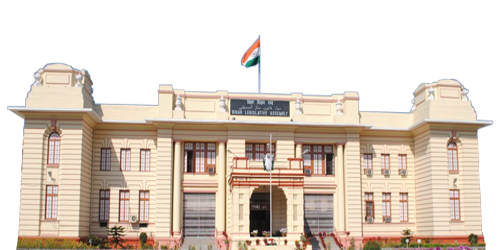 Bihar
Bihar
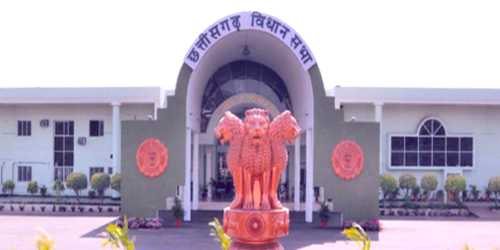 Chhattisgarh
 Delhi
Delhi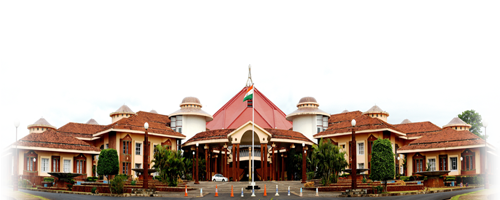 Goa
Goa
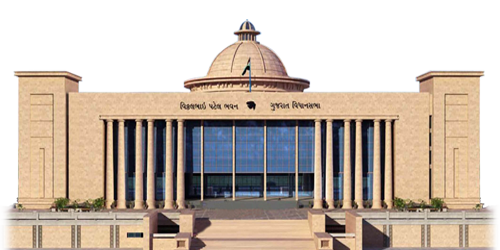 Gujarat
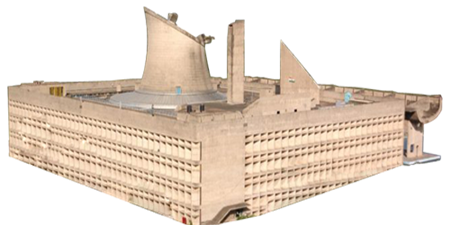 Haryana
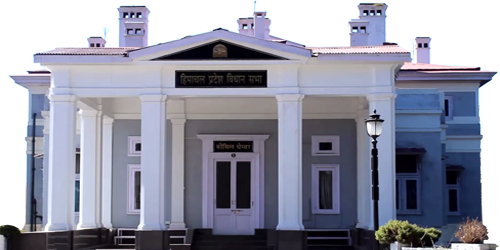 Himachal Pradesh
 Jammu & Kashmir جموں و کشمیر
 Jharkhand
 Karnataka
 Kerala
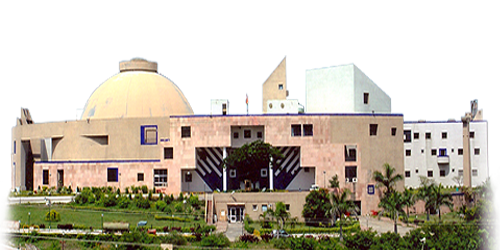 Madhya Pradesh
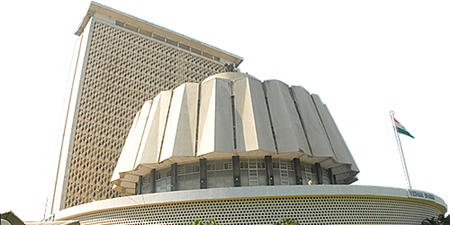 Maharashtra
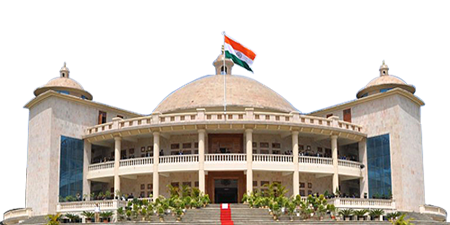 Manipur
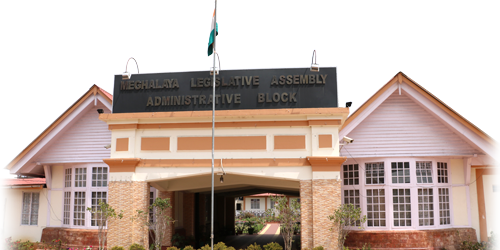 Meghalaya
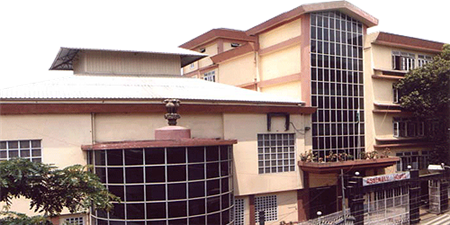 Mizoram
 Nagaland
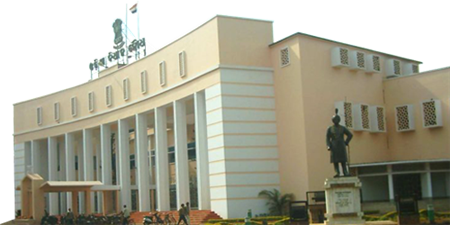 Odisha
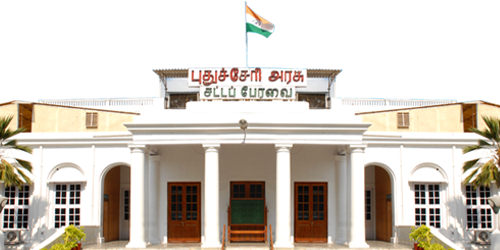 Puducherry
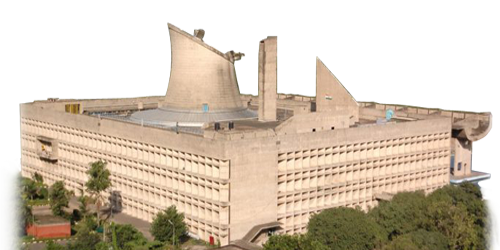 Punjab
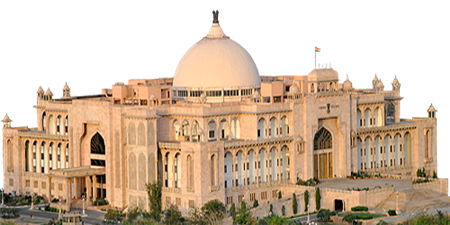 Rajasthan
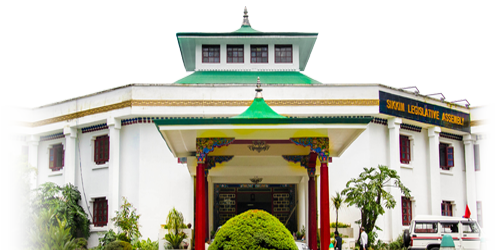 Sikkim
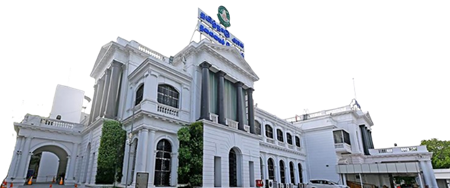 Tamil Nadu
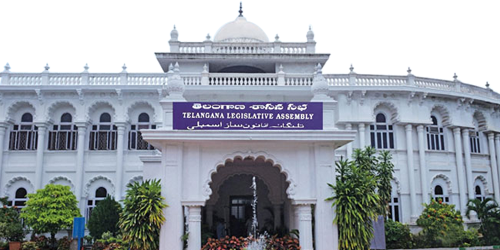 Telangana
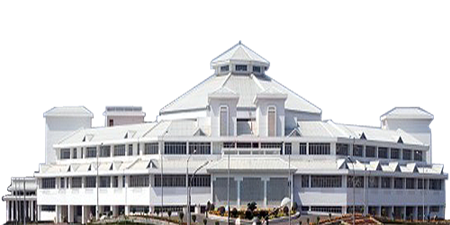 Tripura
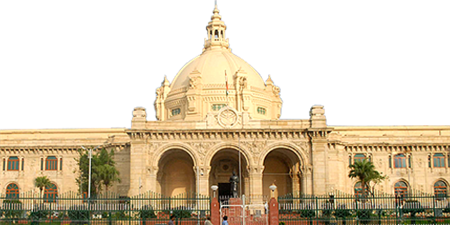 Uttar Pradesh
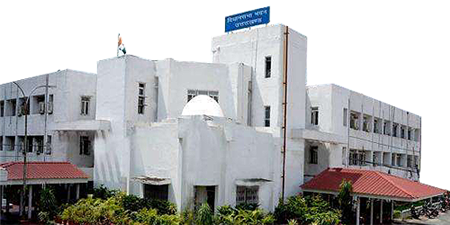 Uttarakhand
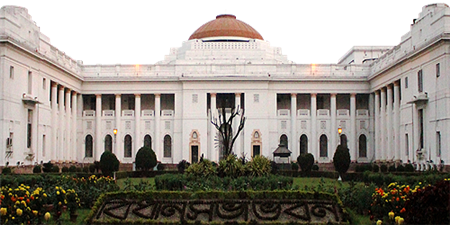 West Bengal
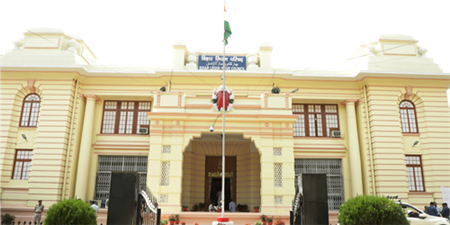 Bihar
Bihar
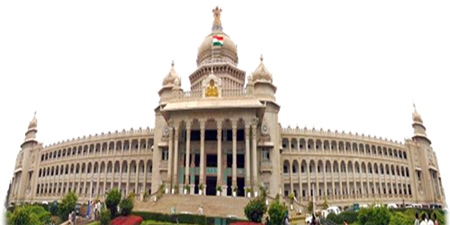 Karnataka
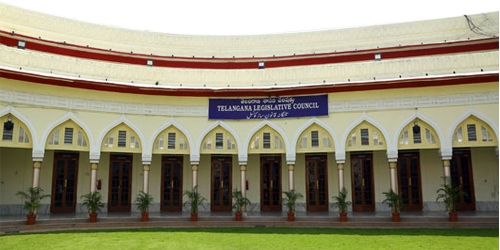 Telangana