- भारत सरकार
- GOVERNMENT OF INDIA

Frequently Asked Question
After typing and saving the Questions/Notices, click anywhere on the Questions/Notices in the list which you want to send, then in the third pane 'Edit' and ‘Send' Button will be visible for updating and sending the Questions/Notices online.
There is an option 'Business Type' within the Notice Menu, in which a list of different rules are given. Select any one rule under which you want to submit your Notice Online to National e-Vidhan Application (NeVA).
No, there is no such option because once a question is submitted online as well as manually the dairy number is assigned automatically to that question which cannot be removed.
When Hon'ble Member submit Questions/Notices to House, message displaying receiving and dairy number assigned to that particular Question/Notice is sent on the registered mobile number.
No, it is not mandatory to fill the subject while entering the question through mobile application as well as web application. If you enter the subject it becomes easy for you to identify the related content of your questions in the list.
No, it is not possible to submit the questions online after the announcement of the last date for receiving the questions because the options for sending the questions are disabled.
The count of Starred Questions, Unstarred Questions and Notices are shown along with the submenus respectively within the Online Submission menu.
No, it is the android based mobile application now so it cannot be installed in the i-Phones.
Firstly Select Starred/ Unstarred menu then there is submenu pending for reply, After that the list of questions is appear, click on any Question in the centre pane , detail of particular question will appear on the right pane by clicking on (Acknowledgment Question to view the Details).
Nodal officers send their Department and Access description request to their Administrative Secretaries. They accept their request by clicking on Access control menu, there is sub menu pending request, the list of Nodal Officers is showing here, by clicking on Accept request button they accept their request and provide the Access to their Nodal Officers.
From Public site https://neva.gov.in/ After that there is a Menu Paper Laid on the Top by clicking on this there is a parameter Assembly/Session/Date After selecting these parameters you can view the House Documents laid in the House for any date.
To access the Public Website:
To access the National e-Vidhan Public Website using the web address https://neva.gov.in/
To access the Secure Website:
1.Login to National e-Vidhan Secure Website using web address https://cms.neva.gov.in
2. By using web address https://neva.gov.in/ Click on the 'Login' button in the upper right corner of the screen for accessing the secure login.
There are two steps:
Step-I : By using Secure Website
1. Enter User Id and Password in the login window.
2. Click on the 'Online Submission' menu.
3. Click on the Starred Questions/Unstarred Questions/Notices you want to send.
4. Type the new Questions/Notices in the Details Section and click on the 'Save' button.
5. Click anywhere on the Questions/Notices in the list which you want to send, then in the third pane
'Edit' and 'Send' Button will be visible for updating and sending the Questions/Notices online.
Step-II: By using NeVA Mobile Application
1. Open the National e-Vidhan Member mobile app.
2. Select the House Documents and select the 'Send Questions/Notices' options.
3. Select the Starred Questions/Unstarred Questions/Notices you want to send.
4. Touch the button in the right bottom of the screen and type in the Questions/Notices in the details section.
5. After typing touch the 'Send' Button for submitting the Questions/Notices to Vidhan Sabha or touch the 'Save and Send later' for submitting the Question/Notices later on.
Yes, in the diary login, select the change button on the right corner of the screen which enables user to change the assembly and session and then click on Apply. It wills the freeze the changed assembly/session.
No, the receive date cannot be changed by the user but the received time can be modified by clicking on the clock icon in the Received time field.
Yes, the user type in the editor in any language as it is Unicode compliant. It will accept any font.
Yes, the user type in the editor in any language as it is Unicode compliant. It will accept any font.
The question which is diaried needs to be attached with the scanned hard copy paper for further processing and assignment
Yes, in legislation, there is a provision for type changing of questions from Starred to Unstarred but not the other way round.
Yes, the content/details of the question can still be edited at the translator stage along with the change in the order of questions to be displayed.
One can enter the header in the Admin login, under the Sessions Signature menu.
For this, it is firstly required to set the rotation of Ministers in the Admin’s login.
Set the initial sequence number in the Site Settings so as to fix the questions.
No, only the replies can be drafted by the Department at this stage.
The following are the field in the Annexure tab-
- House
- Session
- Session Date
- Document Type.
After selecting the NeVA Unit, enter the User Id & password. Then enter Captcha Value to login.
- Starred Question
- Unstarred Question
- Notices
- Short Notice Questions.
Question is searched in the online submission dropdown menu of the dashboard.
Yes, Previous data can be accessed.
Session status depicts about the overall question, notices, short notices, any other programmes performed during the session.
A dedicated notification panel is provided on the dashboard which shows the acceptance of the Question/Notices etc. by the concerned House.
Yes, paper can be received in the inbox of Member Login Portal.
Committee Membership can be seen in the inbox dropdown of the dashboard.
Member can look for following details-
- Committee/Branch Type
- Committee
- Start Date
- Role
- Member Name
Bill Summary of the session is visible in the Assembly Bills drop down menu of the main dashboard.
Yes, Hon’ble member can get her salary slip on this portal.
The user can change the font size of the text by using these two options.
The user needs to click on the Starred Question sub-menu of Online Submission drop down. Then click on the NEW to create the Question.
The following details are required to create a NEW Question-
- Business Type
- Minister
- Subject
- Question Language
- Priority
- Desired Date
- Your Signature
- Details of the Question
No, the signature once uploaded, will automatically reflect in the field of signature and that can also be changed through user management portal of NeVA.
No, this facility can be availed by the House .
Using NeVA Application Hon’ble Members can submit their Questions/Notices online through NeVA Web Application as well as Mobile Application. The Questions/Notices Submitted are processed online by the Legislative House Secretariat using Workflow based NeVA CMS application. The final list of Questions/Notices so prepared is auto generated and the question book is uploaded directly to NeVA Public Website of respective House.
- Diary Login (Enter a new Question)
- Legislation Department (Assign to typist)
- Typist Department (Enter more detail about question)
- Proof Reader Department (Checking/Reviewing question)
- Legislation Department after Proof Reading (to be sent for Approval to Secretary)
- Secretary Department (Approve pending questions and send to legislation department for fixing)
- Legislation Department (Fix the already Sent question)
- Translator Department (For generating PDF)
- Secretary Department (Final Approval for publishing question)
- Go to login URL - https://cms.neva.gov.in/
- After that fill-up credentials to login by entering user name and password
The following items reflect in the dairy dropdown-
- Starred Question
- Unstarred Question
- Short notice Question
- Notices
- Paper Verification
- Report
The user needs to select the question type then click on the NEW to create dairy of the received Question.
To see the list of the questions, the user needs to select the relevant type of question from dairy drop down. Then, the list will automatically be displayed in the panel.
The Dairy No. of the Question, Subject of the Question and ‘Asked by whom’ will be visible on the panel of the Questions.
Blue dot marked Question are sent by the Hon’ble Member online through the NeVA platform.
By clicking on the question the details of the Question will be displayed on right side pane of the dashboard.
After clicking on the particular Question there will be option of the attach paper and by clicking on the ‘Choose File’ the user can upload the relevant papers.
The following details will be visible-
- Dairy No.
- Business Type
- Asked by
- Received Date
- Received time
- Subject
- Priority
- Is Question in parts
- Online Send by Member
- Attach Papers
- Print Taken
Yes, user can change the papers attached wrongly.
By clicking on the NEW option under Starred/Unstarred Question Sub-menu, a new form will be open then the user need to enter all the relevant field related to the Question and click on the Save Button to Save the Question.
- Business Type
- Asked By
- Minister
- Department
- Subject
- Priority
When Diary of a Question is done, it is assigned to one of the typists. The Assigning of Question for Typing is done by Legislation Login
Click on the type of the Question then from the drop down menu click on the Assign for Typing.
When user click on the assign for typing menu from the drop down a list of un assigned Question will be displayed.
The following items will reflect on the dashboard-
- Dairy No.
- Asked By
- Subject
- Ministry Name
- Department Name
- Received Date
User need to select the Question from the Unassigned Questions, and then select the typist to whom it would be assigned
Yes, multiple question can be assigned in one go.
The already assigned for typing question will be displayed when the user click on the “Employee Assigned for the Typing” option.
Yes, the user can un assign any question.
Yes, the user can change the typist.
Yes, it can be done.
The user of this section will type the details of the Question assigned for typing.
Yes, supplementary documents can also be attached along with the main reply.
Register in National e-Vidhan Application (NeVA) through Secure Website https://cms.neva.gov.in by using user id:- nevauser & Password: - welcome
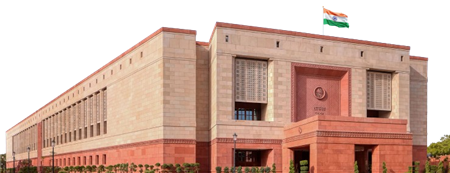 Lok Sabha
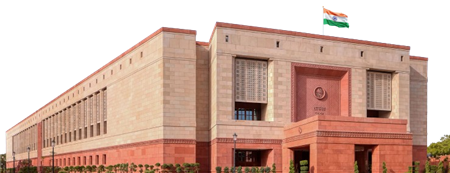 Rajya Sabha
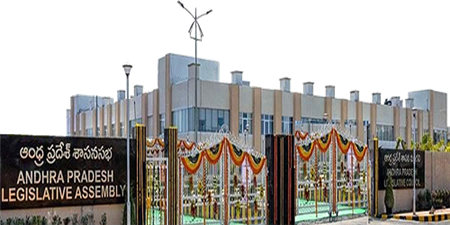 Andhra Pradesh
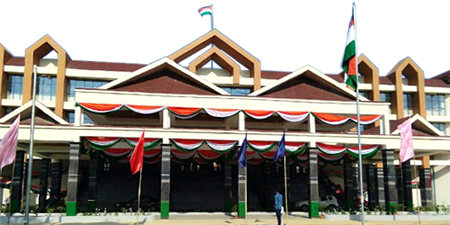 Arunachal Pradesh
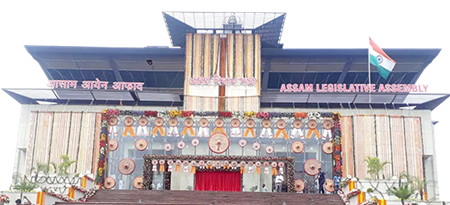 Assam
Assam
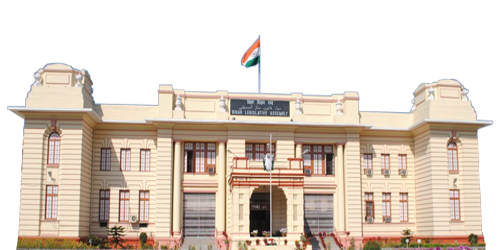 Bihar
Bihar
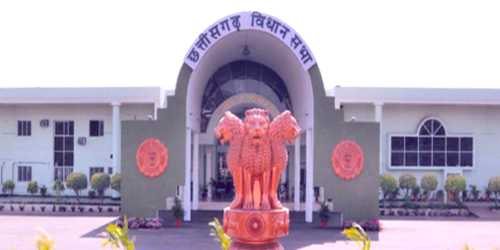 Chhattisgarh
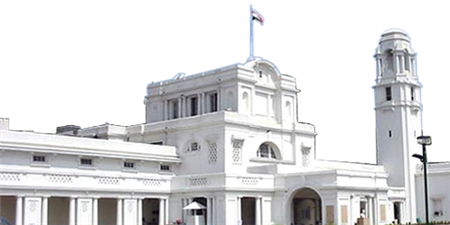 Delhi
Delhi Goa
Goa
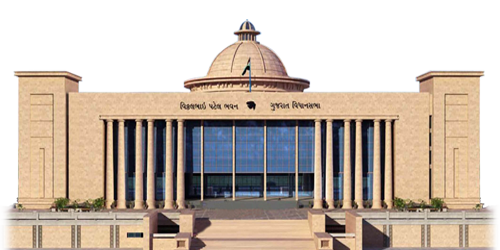 Gujarat
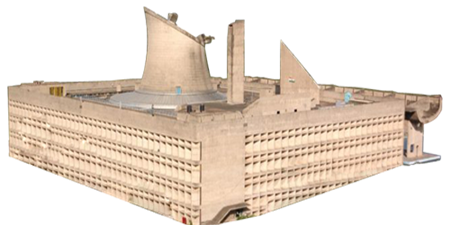 Haryana
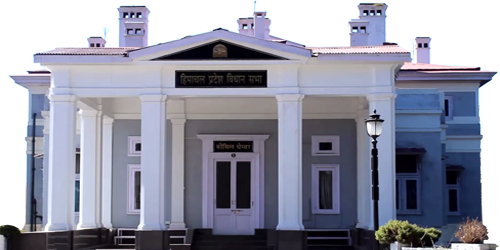 Himachal Pradesh
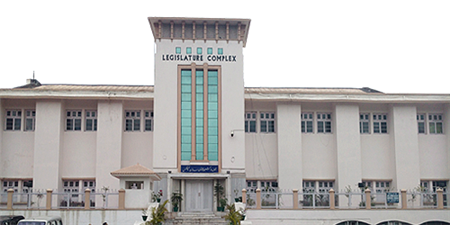 Jammu & Kashmir جموں و کشمیر
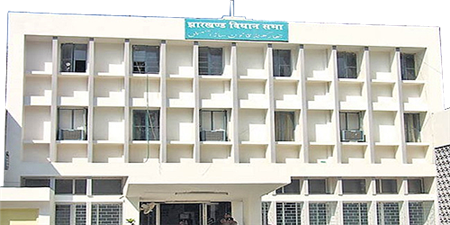 Jharkhand
 Karnataka
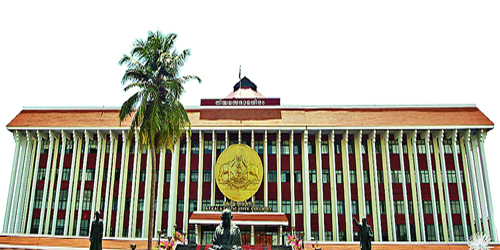 Kerala
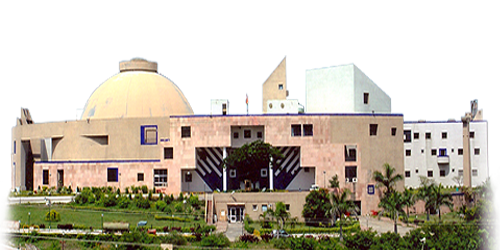 Madhya Pradesh
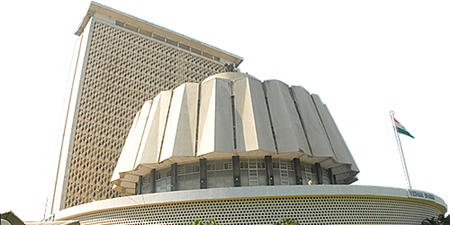 Maharashtra
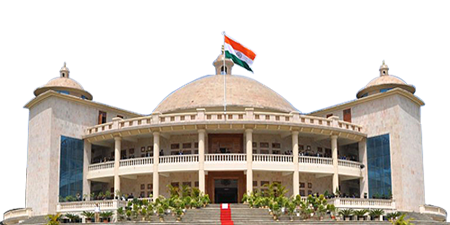 Manipur
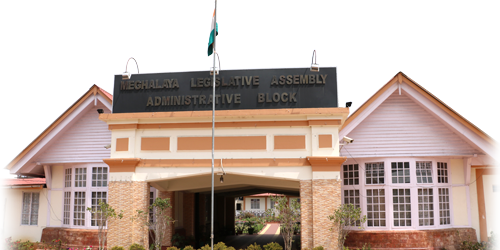 Meghalaya
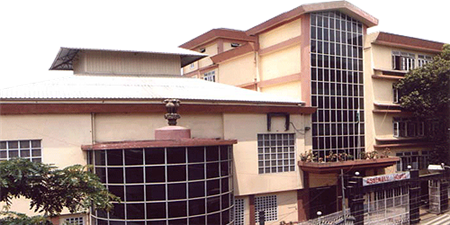 Mizoram
 Nagaland
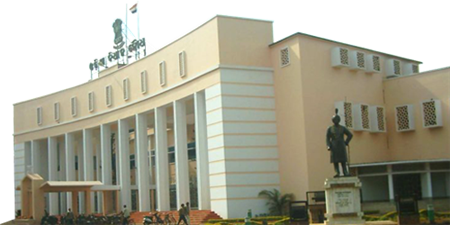 Odisha
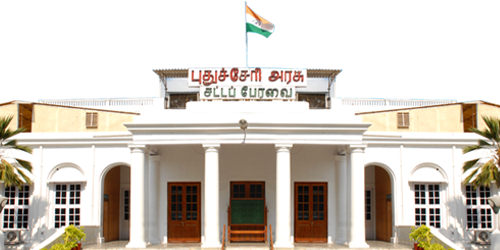 Puducherry
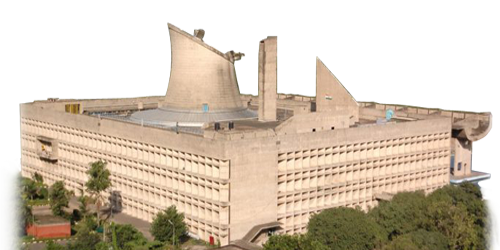 Punjab
 Rajasthan
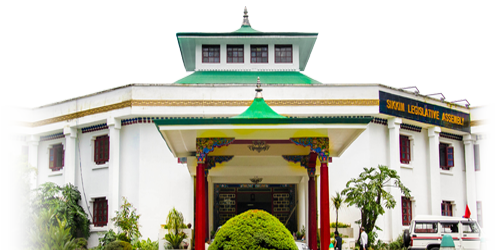 Sikkim
 Tamil Nadu
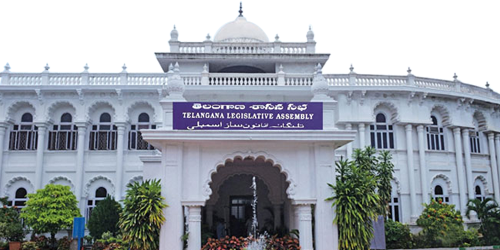 Telangana
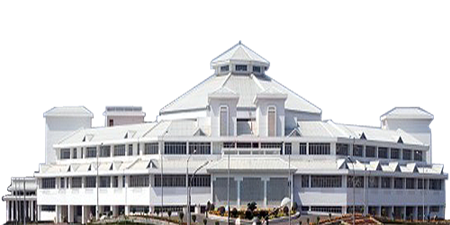 Tripura
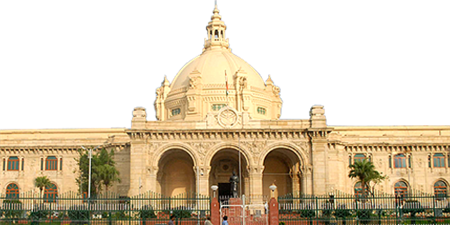 Uttar Pradesh
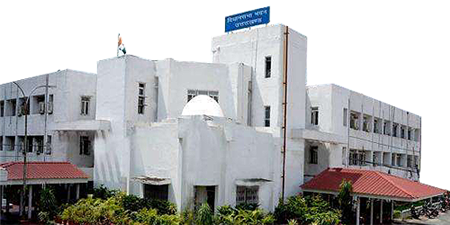 Uttarakhand
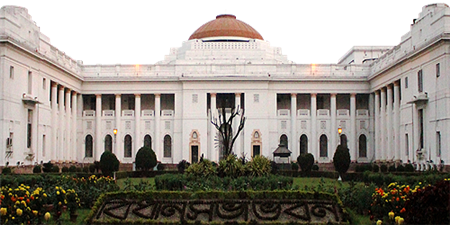 West Bengal
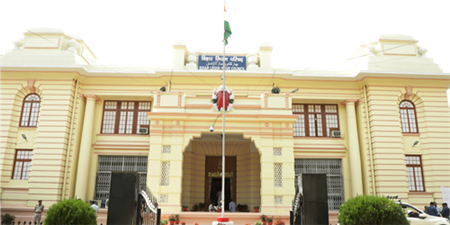 Bihar
Bihar
 Karnataka
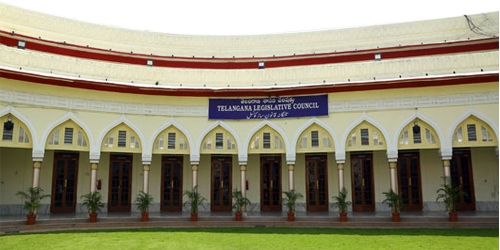 Telangana